How to Connect Claude to FleetSnap (MCP Server)
Connect Claude, or any MCP client, to your own FleetSnap fleet. How to create a token in Account > MCP, the server URL and config to paste, which tools each plan can use, and what to ask. Every tool is read-only.
 By The FleetSnap Team·8 min read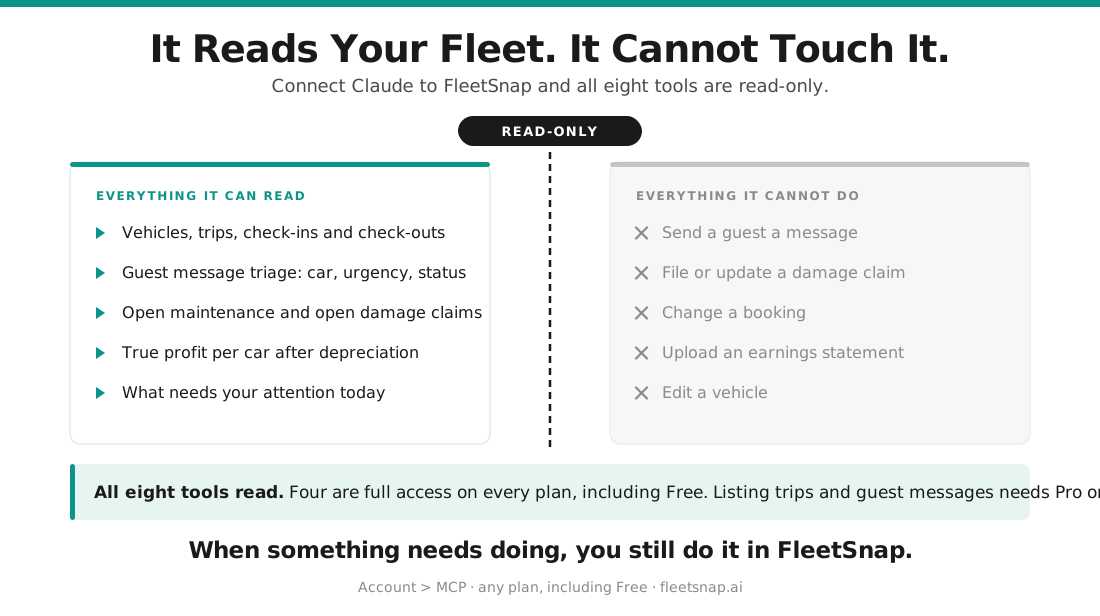
In this guide
What MCP actually is, in host terms
MCP stands for Model Context Protocol. It is a standard way for an AI assistant to talk to an outside system. You can think of it as giving Claude a read-only login to your FleetSnap account.
Without it, an assistant knows nothing about your fleet, so you end up copying and pasting numbers into a chat window. With it, the assistant asks FleetSnap directly and answers from your real data - your cars, your trips, your messages, your costs.
It is not a chatbot inside FleetSnap. FleetSnap already has one of those, called Ask AI. MCP is the opposite direction: it brings your FleetSnap data out to the assistant you already use for everything else, so your fleet can sit in the same conversation as the rest of your work.
Step 1: create a token
- Open FleetSnap and go to Account, then the MCP tab.
- Under Your tokens, type a name that tells you which client it is for, such as
Claude Desktop - MacBook. A name is required. - Press Create token.
- Copy the token immediately. It is shown once and never again.
FleetSnap stores only a hash of the token, so there is no way to look it up later. If you lose it, revoke it and create another. Tokens start with fsmcp_ and expire after 90 days.
If the tab tells you to verify your email address first, do that and come back - creating a token requires a verified email.
Step 2: point your client at the server
Your server URL is your FleetSnap address with /mcp on the end. The Account > MCP page shows it, right above the snippets, and that is the one to copy: it always matches the FleetSnap you are signed in to and therefore the token you just created. On fleetsnap.ai it reads https://fleetsnap.ai/mcp.
It speaks Streamable HTTP and accepts POST only. Both snippets below are shown on the Account > MCP page with your server URL and token already filled in, so the easiest path is to copy them from there. If you are typing them by hand, replace YOUR_SERVER_URL and fsmcp_YOUR_TOKEN_HERE with the two values on that page.
Claude Code
claude mcp add --transport http fleetsnap YOUR_SERVER_URL \
  --header "Authorization: Bearer fsmcp_YOUR_TOKEN_HERE"
Claude Desktop and other MCP clients
{
  "mcpServers": {
    "fleetsnap": {
      "type": "http",
      "url": "YOUR_SERVER_URL",
      "headers": {
        "Authorization": "Bearer fsmcp_YOUR_TOKEN_HERE"
      }
    }
  }
}
The same config works in the MCP Inspector and in any other client that supports an HTTP MCP server with a bearer token.
Step 3: ask it something
Start with this, every time you open a new conversation:
Call fleetsnap_get_context and tell me what you can see.
That tool reports which account is connected, which plan it is on, the timezone your days are measured in, how many vehicles you have, and exactly which of the other tools that plan can use. Everything else depends on it, so it is worth making it the first thing your assistant does.
| Tool | What it answers | Free | Pro and Concierge |
|---|---|---|---|
| fleetsnap_get_context | Which account, which plan, which tools, plus a summary of your fleet | Full access | Full access |
| fleetsnap_ask | A finished answer from FleetSnap's own Ask AI engine | Full access | Full access |
| fleetsnap_search_docs | FleetSnap's public help documentation | Full access | Full access |
| fleetsnap_get_recommendations | What to look at, computed from your numbers with no AI guesswork | Full access | Full access |
| fleetsnap_list_vehicles | The cars in your fleet, and their ids | Limited | Full access |
| fleetsnap_get_fleet_today | Everything needing attention today, in one answer | Limited | Full access |
| fleetsnap_list_trips | Check-ins and check-outs, filtered by date, car, status or type | Needs Pro or Concierge | Full access |
| fleetsnap_list_messages | Guest message triage: which car, how urgent, handled or not | Needs Pro or Concierge | Full access |
On Free, fleetsnap_get_fleet_today returns your trips for the day but marks urgent messages, open maintenance and open claims as unavailable. That is deliberate, and it is different from saying there are none. A tool your plan does not cover refuses with an upgrade note rather than handing back an empty list, so an assistant can never tell you "no urgent messages" when the truth is "this plan cannot see them".
Your plan is checked live on every single call. If you upgrade, your existing token widens immediately - you do not need to create a new one.
What you can ask
These all work through the tools above. Your assistant picks the tool; you just ask the question.
The morning check
- What needs my attention on the fleet today?
- Is anything overdue right now?
- Are there any urgent guest messages I have not handled?
Money
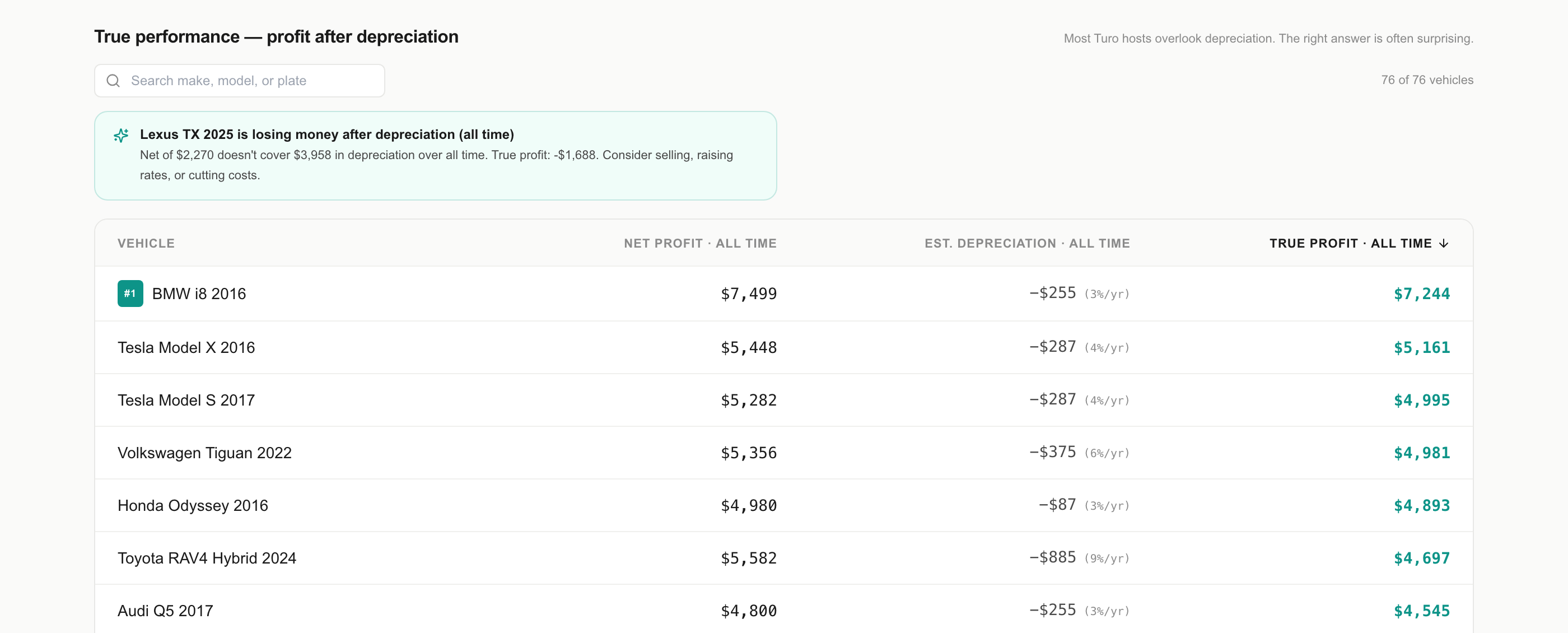
- Which of my cars is losing money after depreciation?
- What is my best earner this year?
- Which car costs the most to run relative to what it brings in?
Planning
- What trips do I have next week?
- Show me every trip for the Transit this month.
- Which cars have not been booked recently?
Using FleetSnap itself
- How do I import my Turo earnings statement?
- How do I file a damage claim in FleetSnap?
That last group is answered from FleetSnap's public help docs through fleetsnap_search_docs, which works on every plan and needs no fleet data at all.
Best use cases
Two jobs are worth connecting for on their own. Both came from a real host describing how he wanted to work.
The monthly earnings close-out
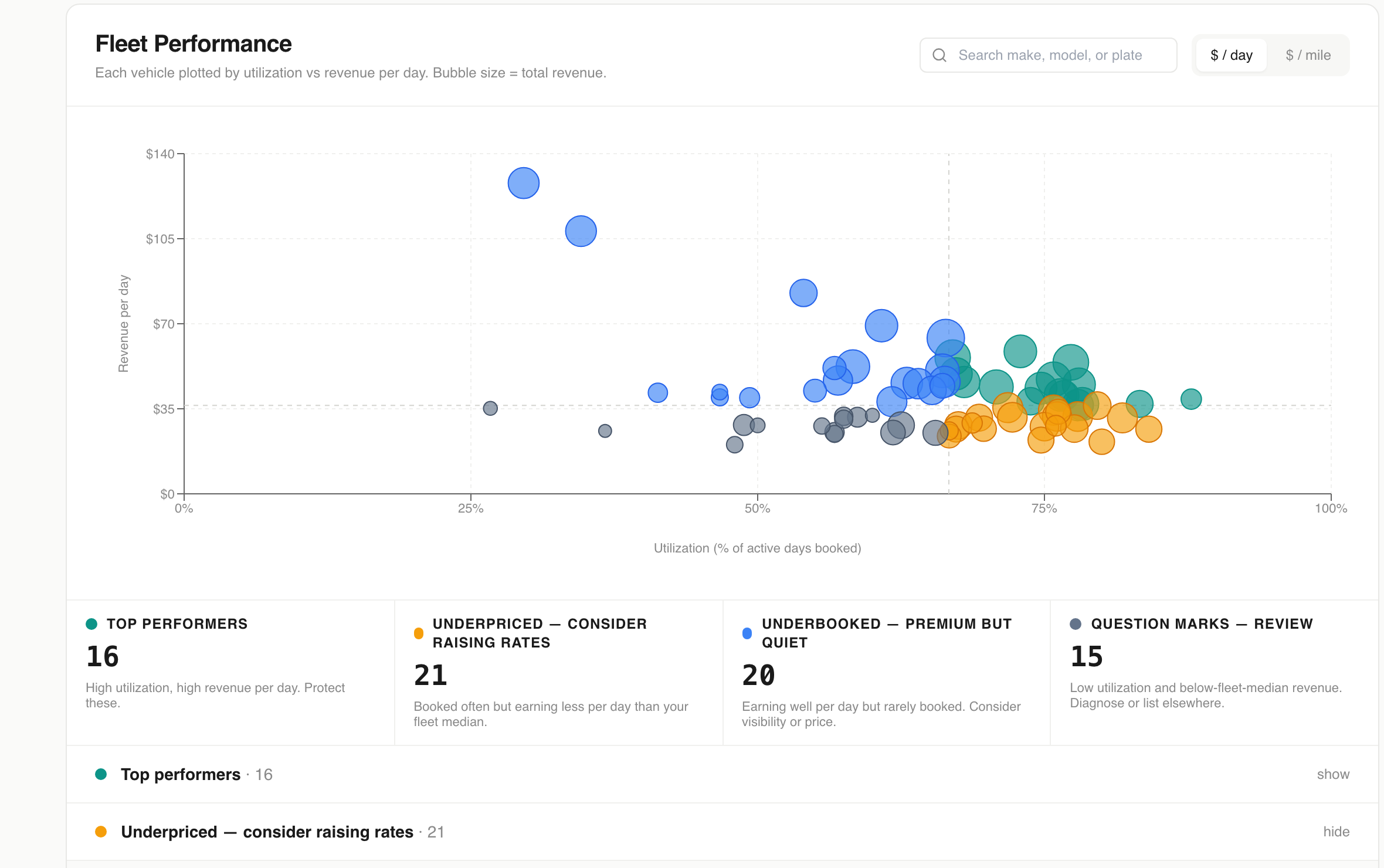
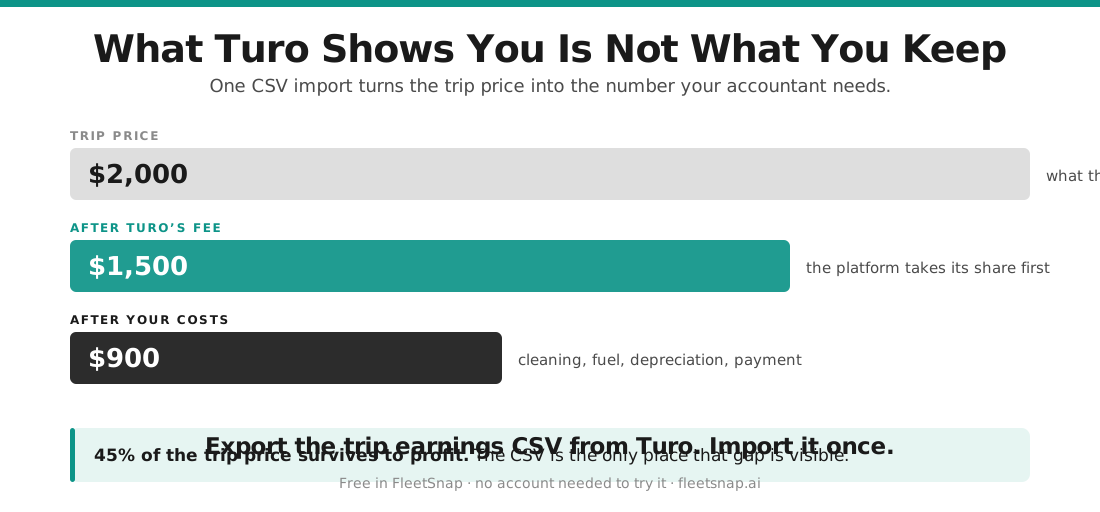
At the end of the month you want to know what the fleet actually made, not what it grossed. Ask your assistant to pull your true profit per vehicle after depreciation, your attributed costs, and anything that looks wrong. fleetsnap_ask answers the money questions from your own numbers, and fleetsnap_get_recommendations flags the specific things worth acting on - a car whose depreciation is outrunning its earnings, a monthly cost more than double the fleet median, a car sitting idle while the rest of the fleet booked.
The reading half of that close-out works today. The writing half does not: uploading the statement and entering your costs still happens in FleetSnap, and the assistant will link you to the right screen rather than doing it for you.
The maintenance and claims round
Once a month you go through what is open and decide what to chase. Ask for everything outstanding - on Pro and Concierge, fleetsnap_get_fleet_today returns open maintenance issues and open damage claims alongside the day's trips, and fleetsnap_get_recommendations surfaces claims that have been open 30 days or more with no update in the last 14. From there your assistant can help you think, prioritize, and draft the messages you are going to send.
Again, the round ends in FleetSnap. Assigning work, updating a claim and marking a thread handled are all things you do in the app, and every record comes back with a link to the screen that does it.
fleetsnap_list_messages returns triage information only: which vehicle, how urgent, what kind of message, whether it has been handled, and when it arrived. The text of the message is not returned, and neither is the guest's identity. To read what somebody actually said, or to see who sent it, you open the message in FleetSnap using the link that comes back with it. Your guests never agreed to have their words or their names passed to a third-party AI model, so FleetSnap does not pass them.Looking after your tokens
- One token per client. If you connect a laptop and a desktop, give each its own. Revoking one then leaves the other working.
- Tokens expire after 90 days. Nothing renews on its own, which is the point.
- Revoking is instant. A revoked token stops working on its very next call, not at the end of the day.
- You cannot retrieve a token. FleetSnap keeps only a hash. Lost it? Revoke and create another.
- Treat it like a password. Anyone holding it can read everything your plan can read. It never expires into something harmless.
Account > MCP lists every token you have ever created, with when it was last used, so you can see at a glance whether an old one is still in play.
If it is not working
The MCP tab is not in my Account page. The server is switched on per environment. If the tab is absent, MCP is not enabled for your account yet.
My client says unauthorized, or 401. The token is wrong, revoked, expired, pasted with a character missing, or pointed at a different FleetSnap than the one that issued it - check the server URL in your client still matches the one on your Account > MCP page. FleetSnap answers all of those the same way on purpose, so the fix is the same too: create a fresh token and paste it again, carefully. Check it still starts with fsmcp_.
I opened the server URL in my browser and got an error. That is expected. The endpoint accepts POST only, so a browser visiting it gets a 405. It is not a sign anything is broken.
A tool says it needs Pro or Concierge. That is your plan, not a fault. fleetsnap_list_trips and fleetsnap_list_messages need a paid plan. Upgrading widens the token you already have.
It says my email is not verified. Verify it from the email FleetSnap sent when you signed up, then create the token.
Everything slowed down or started failing. Each token is limited to 60 calls a minute. A client looping over your whole fleet can reach that; wait a minute and ask for less at a time.
Questions hosts ask
How do I connect Claude to FleetSnap?
Go to Account, open the MCP tab, give a token a name and press Create token, then copy the token straight away because it is only shown once. Copy the ready-made snippet on the same page into your client: for Claude Code it is a claude mcp add command, and for Claude Desktop it is a small JSON block pointing at your server URL with an Authorization header carrying your token as a bearer credential. That page shows the server URL for the FleetSnap you are signed in to, which is the one that matches your token. Then ask your assistant to call fleetsnap_get_context first, which confirms the connection and reports what your plan can reach.
What is the FleetSnap MCP server URL?
Your FleetSnap address with /mcp on the end - on fleetsnap.ai that is https://fleetsnap.ai/mcp. The Account > MCP page shows the URL for the FleetSnap you are signed in to, and that is the one to copy, because a token only works against the FleetSnap that issued it. It uses Streamable HTTP and accepts POST only, so opening it in a browser returns a 405 rather than a page. That is expected and does not mean anything is wrong. Authentication is a bearer token in the Authorization header.
Can the MCP server send messages or change anything in my account?
No. Every tool on the server is read-only. It cannot send a guest message, file or update a damage claim, change a booking, upload an earnings statement or edit a vehicle. It reads your data and answers questions about it. When something needs doing, the answer comes back with a link into FleetSnap, and you do it there yourself.
Do I need a paid plan to use it?
No. Any FleetSnap account can create a token and connect, including Free. Four of the eight tools are fully available on every plan: fleetsnap_get_context, fleetsnap_ask, fleetsnap_search_docs and fleetsnap_get_recommendations. Listing vehicles and the daily fleet view come back in a limited form on Free. Listing trips and listing guest messages need Fleetsnap Pro or Fleetsnap Concierge.
What does 'limited' mean on the Free plan?
It means a real but narrowed answer, never a fabricated or empty one. On Free, fleetsnap_get_fleet_today returns the day's trips but marks urgent messages, open maintenance and open claims as unavailable, with the reason attached. That is deliberately different from reporting zero, so your assistant can say 'not available on this plan' instead of wrongly telling you that you have nothing outstanding.
If I upgrade, do I need to create a new token?
No. Your plan is read live from your account on every call, so an existing token widens the moment you upgrade. The same is true in reverse: if a plan lapses, reach narrows immediately rather than when the token happens to expire.
Can Claude read my guests' messages?
No. fleetsnap_list_messages returns triage information only: which vehicle a message relates to, how urgent it is, what kind of message it is, whether it has been handled, and when it arrived. The message text is not returned and neither is the guest's identity. To read what a guest said, or to see who sent it, you open the message in FleetSnap using the link returned alongside it.
How long do MCP tokens last?
90 days. Tokens do not renew on their own, so a laptop you stopped using stops working by itself rather than holding access indefinitely. You can see every token you have created, and when each was last used, under Account > MCP, so it is easy to spot one that is still in play.
I lost my token. Can I look it up?
No. FleetSnap stores only a hash of the token, so the plaintext genuinely does not exist anywhere after it is shown to you once. Recovery is not retrieval: revoke the old token and create a new one, then update your client with it.
How do I disconnect a client?
Revoke its token under Account > MCP. Any client using it stops working on its very next call. This is why it is worth creating one token per client and naming it after that client, so revoking a lost laptop does not also disconnect your desktop.
Why does my client say unauthorized?
Because the token is unknown, forged, revoked, expired, or was pasted incorrectly. FleetSnap deliberately answers all of those identically, so that nobody can use the error message to work out whether a given token ever existed. The fix is the same in every case: create a fresh token under Account > MCP and paste it again, making sure it still starts with fsmcp_ and that nothing was truncated.
Is there a rate limit?
Yes, 60 calls per minute per token. That is generous for conversational use but reachable if a client loops over a large fleet one vehicle at a time. If you hit it, wait a minute and ask for less at once - for example a date range rather than every trip you have ever had.
Does asking through Claude use up my Ask AI allowance?
Only fleetsnap_ask does, and only when it generates a fresh answer about your own fleet data. It runs the same engine as the Ask AI chat inside FleetSnap and draws on the same shared allowance, which is 3 lifetime queries on Free, 50 a month on Fleetsnap Pro and 200 a month on Fleetsnap Concierge. Answers served from the 24-hour cache are free, refusals are free, and how-to questions answered from the help docs are never counted. The other seven tools do not touch that allowance at all.
Which AI clients work with it?
Any client that supports an MCP server over HTTP with a bearer token. Claude Code, Claude Desktop and the MCP Inspector are the ones FleetSnap provides ready-made configuration for, and the same JSON block works elsewhere. The server does not support the SSE or session-teardown parts of the protocol, because it is stateless - each call stands on its own.
Can I restrict a token to only some of my data?
Not today. A token reaches exactly what the account's plan reaches, no more and no less, and what it can read is worked out from the account on every call. There is no per-vehicle or per-tool restriction, so treat a token as equivalent to read access to everything your plan covers, and revoke it if you are unsure where it has been.