How to Add a Vehicle to Your Fleet in FleetSnap
Step-by-step: open Manage fleet, add a car with its make, model, year, and plate, save it, and raise your subscribed fleet size first if you have already used every slot you pay for. For Fleetsnap Pro and Concierge.
 By The FleetSnap Team·4 min read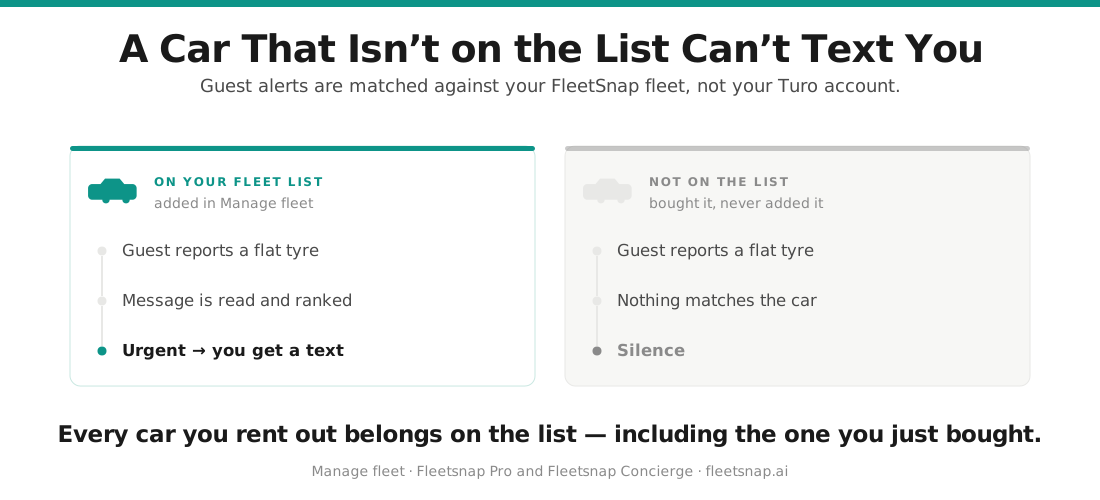
In this guide
Your fleet in FleetSnap is the list of cars the product works from. It is worth keeping complete for a reason that is easy to miss: guest-message alerts are matched against this list, so a car that is not here will not text you when a guest has an urgent problem with it.
Step 1 - Open Manage fleet
From the Concierge dashboard menu, click "Manage fleet". That opens "Share Your Vehicle Details", which lists every car already on your account.
A banner at the top of that page tells you where you stand, for example "You have 4 of 6 vehicles added."
Step 2 - Add the car
Click the dashed "Add Vehicle" tile at the end of the grid. The counter on that tile shows how many cars you have against your fleet size, for example 4/6.
A blank card appears with four required fields:
- *"Make " - pick from the list rather than typing free text
- *"Model " - the list narrows once a make is chosen
- *"Year "
- *"Plate "
Repeat for each car you are adding.
Step 3 - Save
Click "Save Vehicles" at the bottom of the page. The counter in the banner updates once the cars are stored.
To take a car off the list, click the X on its card.
Adding several cars at once
If you are setting up a fleet rather than adding one car, use "Quick Import from Turo" at the top of the same page. Drag and drop your Turo trip earnings CSV onto it and FleetSnap fills in the cars for you - it picks up vehicles with trips in the past two months. CSV files only, up to 10MB. You still click "Save Vehicles" afterwards, and the same fleet-size cap applies.
Questions hosts ask
How do I add more vehicles?
Click "Manage fleet" in the Concierge dashboard menu, click the dashed "Add Vehicle" tile, fill in Make, Model, Year, and Plate, and click "Save Vehicles". If the "Add Vehicle" tile is not showing, you are at your subscribed fleet size and need to raise it on the "Subscription" tab of your account page first.
How do I add cars to my fleet?
The same way, one card per car. Open "Manage fleet", click "Add Vehicle", fill in the make, model, year, and plate for each car, then click "Save Vehicles". To add cars in bulk, drop your Turo trip earnings CSV on "Quick Import from Turo" instead.
How do I put another car on my account?
Open "Manage fleet" from the Concierge dashboard menu, click the "Add Vehicle" tile, fill in Make, Model, Year, and Plate for the car, and click "Save Vehicles". You can put as many cars on your account as the fleet size you subscribe for; past that, raise the fleet size on the "Subscription" tab of your account page first.
How do I add another vehicle?
Go to "Manage fleet", click the dashed "Add Vehicle" tile, and fill in the four required fields - Make, Model, Year, and Plate - then click "Save Vehicles". If the tile is not there, you have already added as many vehicles as your subscription covers, so raise your fleet size on the "Subscription" tab first.
Why is there no Add Vehicle button?
The tile is hidden once the number of cars on your list reaches the fleet size you subscribe for. Raise the fleet size on the "Subscription" tab of your account page - click "Change" next to your vehicle count, type the new number, and click "Confirm Change" - and the tile comes back.
Is adding a car the same as changing how many vehicles I'm billed for?
No, they are two separate things. Changing your fleet size on the "Subscription" tab changes your bill and how many slots you have. Adding a car on "Manage fleet" fills one of those slots and does not change your bill on its own.
What details do I need for each car?
Four, all required: Make, Model, Year, and Plate. Make and Model are chosen from lists rather than typed, and the model list narrows once you pick a make.
Can I add all my cars at once?
Yes. Use "Quick Import from Turo" at the top of the "Manage fleet" page and drag your Turo trip earnings CSV onto it. FleetSnap fills in the vehicles that had trips in the past two months, up to your fleet size, and you click "Save Vehicles" to store them. CSV files only, up to 10MB.
How do I remove a car?
On the "Manage fleet" page, click the X on that car's card. Removing a car does not change your fleet size or your bill - that is on the "Subscription" tab.
Does it matter if a car is missing from my fleet?
Yes. Guest-message alerts are matched against the cars on your account, so an urgent message about a car that is not on the list will not send you a text. The message still appears in Inbox Monitoring, but it will not page you.