
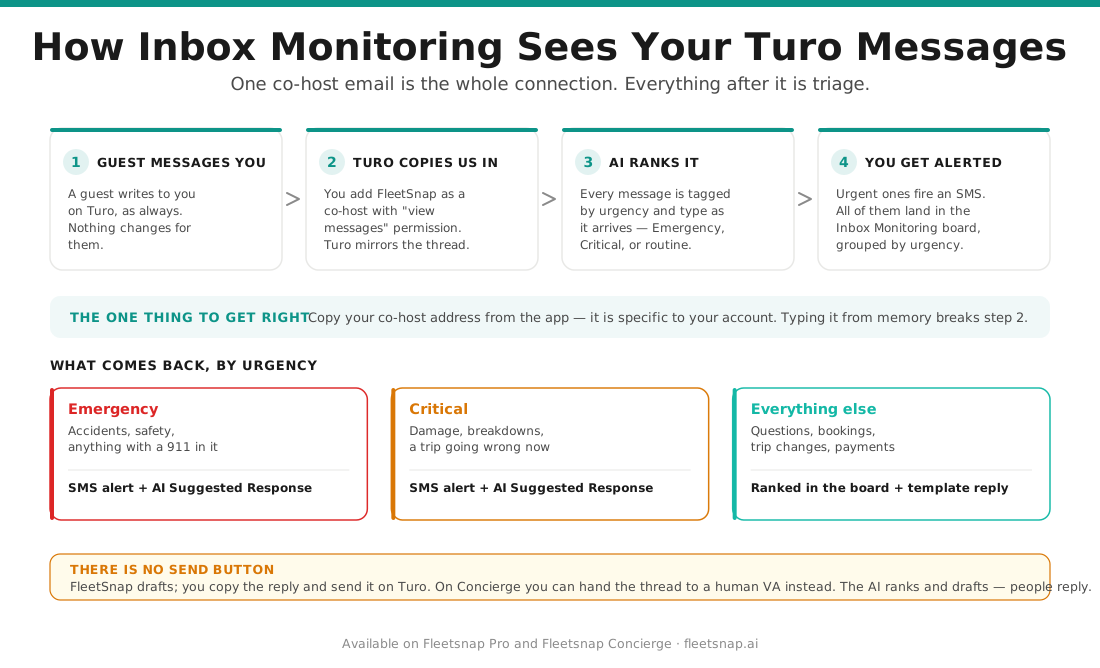
Inbox monitoring connects FleetSnap to your Turo inbox by adding a FleetSnap co-host email to your Turo account. Once it's connected, every guest message is screened, ranked by urgency, and - for urgent ones - given an AI-drafted Suggested Response you can copy and send. Setup is a short three-step wizard. Controls below are named exactly as they appear.
Step 1 - Open Inbox AI and start setup
From your account menu, open "Inbox AI" (this opens the Inbox Monitoring dashboard), then start "Set Up Inbox Monitoring". The wizard walks three steps shown across the top: Co-Host Setup, Notification Preferences, Test & Confirm.
Step 2 - Copy your co-host email
On "Add Fleetsnap as Co-Host on Turo", find the "Your Co-Host Email" field and use the copy button next to it. This is your dedicated FleetSnap Virtual Assistant email - for example team@concierge.fleetsnap.ai. The "Quick Setup (2 minutes):" panel lists what to do:
- Go to your Turo account settings
- Add a co-host with the email shown
- Grant "View messages" permission
- Confirm below once you've added the co-host
Step 3 - Add the co-host in the Turo app
In the Turo mobile app:
- Open Turo App
- Go to Settings - tap your profile icon, then Settings
- Select "Co-hosts" (under the Hosting section)
- Add New Co-host - tap "Add co-host" (or the + button) and paste your FleetSnap email
- Set Permissions - grant Manage messages and guest communication (plus View and manage bookings and Handle trip modifications)
- Send Invitation
FleetSnap accepts the invitation, usually within 24 hours.
Step 4 - Confirm, then set alerts
Back in FleetSnap, tick "I've already added & accepted it on my Turo account" and click "Continue to Notifications". (The page also updates on its own once Turo confirms - until then it shows "Waiting for you to accept our co-host invite...".)
On "How Should We Alert You?", add your Primary Phone Number (and optionally a second), turn on the "Text Message (SMS)" toggle, and accept the SMS consent. Click "Next: Test Connection".
Step 5 - Test it
On "Test Your Setup", click "Send Test SMS" and confirm the alert lands on your phone. That's it - monitoring is live. New guest messages now appear in Inbox Monitoring, grouped by urgency (Emergency, Critical, and so on).
Using suggested responses
Open any thread from the Inbox Monitoring dashboard. For urgent messages (Emergency/Critical), FleetSnap drafts an AI "Suggested Response". You can:
- "Regenerate" to draft a different reply
- "Edit" (then "Done") to tweak the wording
- "Copy" the text, then "Reply on Turo" to send it
There's no send button inside FleetSnap - you copy the reply and send it on Turo. On Concierge, you can also "Assign to VA" and let a human VA handle the reply.