
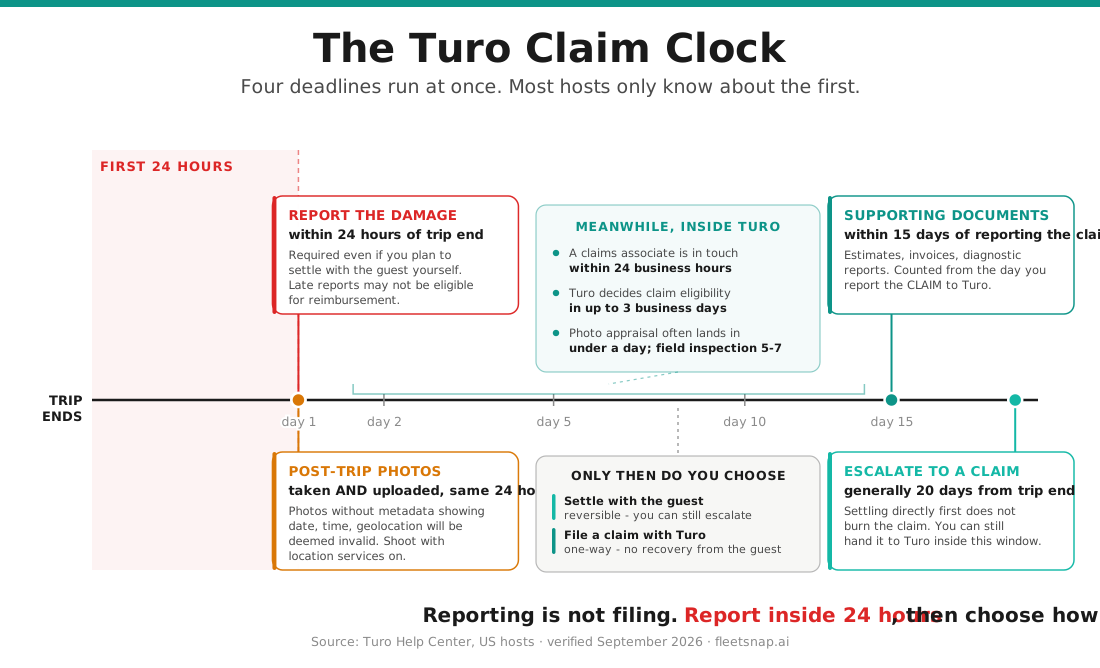
FleetSnap turns damage photos into an itemized, location-aware repair estimate and then walks you through contacting the guest, filing with Turo, and tracking the claim to resolution. The whole flow is a four-step wizard: Document -> Estimate -> Take Action -> Track. Every control below is named exactly as it appears in the app.
Step 1 - Start a new claim
Open Damage Claims (the sidebar item in your Pro or Concierge dashboard; the account menu also has "Claims" and "New Claim"). Click "New Claim". First time in, the empty state reads "No claims yet" with a "Get Your Free Estimate" button - your first estimate is free.
Step 2 - Document the damage
The first wizard step is titled "Document the Damage".
- Photos: upload into the "Damage Photos" card (marked required) - drag onto "Drag and drop photos, or click to browse", or tap "Add Photos" on mobile. Accepted: PNG, JPG, WEBP, HEIC up to 10MB each. Include clear close-ups of each damaged area plus a wider shot for context.
- Vehicle: if you're on Pro or Concierge with a fleet, use "Select from Your Fleet"; otherwise fill "Vehicle Information" (Year, Make, Model).
- Protection plan: set "Guest Protection Plan" (Premier, Standard, Minimum, Declined, or "Don't know yet").
- Location: mark where the damage is on the vehicle. Expand "Add more details (optional)" for plate, state (for labor rates), dates, and trip details.
When it's ready, click "Get Your Estimate".
Step 3 - Review the estimate
FleetSnap runs the analysis ("Analyzing Your Photos") - usually well under a minute - and lands on "Your Estimate" with an itemized, location-aware repair quote. From here you can:
- "Download Report" - the damage report PDF
- "Download Quote" - the repair quote PDF
- "Re-run" - regenerate the estimate (limited number of times)
There's also a Turo Claims Summary you can Copy and paste straight into Turo's resolution center. Click "Next: Take Action" to continue.
Step 4 - Take action, then file
On "Take Action", contact the guest first. FleetSnap gives you message templates by tone - "Friendly - Within 6hrs", "Firm - 48 hours", "Formal - 5 days" - each with "Copy to Clipboard". Send the message, open the claim in Turo, attach the report and quote, then click "Mark as Filed".
Step 5 - Track to resolution
The final step, "Track", shows the claim moving through its lifecycle. When it's paid out or closed, click "Mark as Resolved", then in the "Resolve Claim" dialog record "Amount Recovered ($)" and the "Resolution Method" (Guest paid directly, Turo claim payout, Insurance claim, or Written off / unrecoverable) and click "Confirm Resolution". Use "View All Claims" to return to the dashboard.
Claim statuses you'll see
| Status | What it means |
|---|---|
| Documented | Photos and vehicle details captured; estimate not yet generated |
| Estimate Pending | The AI estimate is being generated |
| Estimate Ready | Your itemized repair estimate is ready to download and act on |
| Guest Contacted | You've reached out to the guest / taken action |
| Filed | You've filed the claim with Turo |
| Resolved | The claim is closed and the outcome recorded |